

1G1M: Week 4, Tuesday
- Jun 7, 2019
- 3 min read
Total Time: 7hrs
Tuesday 16th April: 7pm - 11am - Added saving / loading capability via json
1pm - 3pm - Created and implemented VFX
So I was super busy last week after being in Poland and then Insomnia64 in Birmingham meaning I didn't work on the project at all..
I readjusted my stretch goals and basically cut a couple of features or added them as stretch goals for if I have time.
CURRENT STATE
SCHEDULE

Pushed Features
DJ
Weirdo Mobs
Rubbing Feet
SAVING/LOADING WITH JSON
It took me SO LONG to get my head around how to load and overwrite json data and import it for us in your game scripts. I'll try to explain it below and provide links for tutorials I found helpful when figuring out how to do this..
I had to make a new empty scene and create a test script to figure out how this works because doing this in an already long and complicated script was difficult!
This is a very basic example of a way to setup and use json.

CREATING THE JSON PROPERTIES
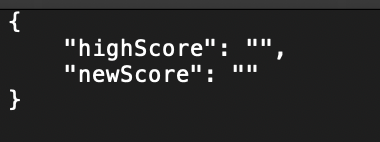
If you look at the bottom of the script there is a [System.Serializable] data class called GameData. This is like a regular class, except it doesn't derive from Monobehavior, so the : Monobehavior bit is removed as it is purely for storing data.
The GameData class shows up in my json file like this:
CREATING A GAMEDATA INSTANCE
At the top of the script, I created a new GameData called _gameData like this:

Now I have a copy of the GameData class (or an instance) that I can store a highScore and newScore to.
SETTING UP THE PATH FILE FOR JSON
I'm developing on a mac and for mobile so I have to store the json file in a specific place. You can look online to see where files need to be stored for your dev platform and target platform.
I created a path variable so I don't need to type out the full thing each time. If you debug.log the path file, you an see exactly where the path leads to. Sometimes the directories are hidden so you will have to unhide them to access them. On Mac, I just copied and pasted the logged path into the Finder > Go, menu.

SAVING TO JSON FILES
As a test, I manually updated the newScore variable in my _gameData class. Then I saved the _gameData into a string called saveData. You have to do this step first using JsonUtility as the data needs to be 'serialized' before it can be written in the json format.
Next, you use File.WriteAllText to write all of the now serialized data to the specified path file. You have to be using System.IO namespace to enable the save features: using System.IO; at the top of the script.

LOADING
When loading, you have to use File.ReadAllText to serialize and import all of the text and store it into a string variable.
Then you can make a new GameData object, I called mine loadedData. You can copy all of the GameData info from the serialized data (jsonString) and store it into loadedData.
Now, you can use information from the loadedData in your game.
In my score variable, I updated it using the newScore string from the loadedData.

OTHER JSON INFO
There was a bit more to it than this as well. For example I had to repeat some of the code in my game over scene so that I can update the text and score using the data stored in the json file. The score also had to be reset to "0" at the start of the game too.
Here is the script used in my game:


Comments